 SplatWorks™
Microsoft Publisher Is Retiring. Meet LayoutSplat.
By Miguel Guhlin · October 14, 2026 · LayoutSplat v0.4.6
A school newsletter. A neighborhood flyer. A brochure for a new program. A sheet of name badges for tomorrow’s event. These are small publications, but making them look right takes more than typing into a document.
With Microsoft Publisher retiring this October, it is a good time to think about where those everyday publishing jobs go next. LayoutSplat™, the publication studio in the SplatWorks™ ecosystem, brings page layout, editable templates, linked text frames, local file imports, and print preparation into the browser.
Open LayoutSplat and try it with a sample publication. You can create and save a publication without signing into a LayoutSplat account.
What Publisher’s retirement actually means
Microsoft’s retirement notice says Publisher will leave Microsoft 365 on or shortly after October 1, 2026, as the change rolls out. It gives October 13, 2026 as the end of support for the perpetual versions covered by the notice. Perpetual copies can still be installed and used afterward; loss of support does not make every existing installation stop running. Microsoft 365 subscribers lose access through that subscription. Microsoft’s Publisher retirement notice.
LayoutSplat gives people another place to create publications and a way to attempt local imports of existing Publisher files. It is still developing, and its Publisher importer should be reviewed against the original before printing. Keep your original .pub files and, when you have access to a working Publisher installation, make PDF reference copies too.
What is LayoutSplat?
LayoutSplat is an editor for arranging text, pictures, shapes, tables, and other objects on pages with explicit dimensions. You choose where the objects go, how large they are, and how the text flows through them.
That makes it useful for publications such as flyers, brochures, newsletters, menus, business cards, greeting cards, catalogs, posters, certificates, resumes, labels, and handouts. A word processor is still useful for drafting the story. LayoutSplat is where you can give that story a page design.
It is part of the same ecosystem as DrawSplat™, WriteSplat™, ShowSplat™, GridSplat™, and ListSplat™. DrawSplat remains the whiteboard. SplatWorks is the name for the wider collection of applications and tools.
LayoutSplat’s features at a glance
| Feature | What you can do |
|---|---|
| Editable templates | Choose 123 distinct compositions across 18 publication types; filter by industry, orientation, language, or palette. |
| Precise page setup | Set paper size, custom dimensions, margins, columns, rows, baselines, bleed, and safe insets. |
| Rulers and alignment | Work in inches, centimeters, picas, points, or pixels; use guides, snapping, alignment, and distribution. |
| Linked text frames | Flow a story through multiple boxes and pages, with overflow detection, columns, and AutoFit. |
| Rich typography | Apply bold, italic, underline, alignment, drop caps, kerning, tracking, word spacing, ligatures, and horizontal text scaling. |
| Local fonts | Import TTF, OTF, WOFF, and WOFF2 fonts and carry them in native projects and supported exports. |
| Graphics and objects | Use drawing tools, shapes, arrows, WordArt, watermarks, border art, tables, grouping, rotation, and layer transparency. |
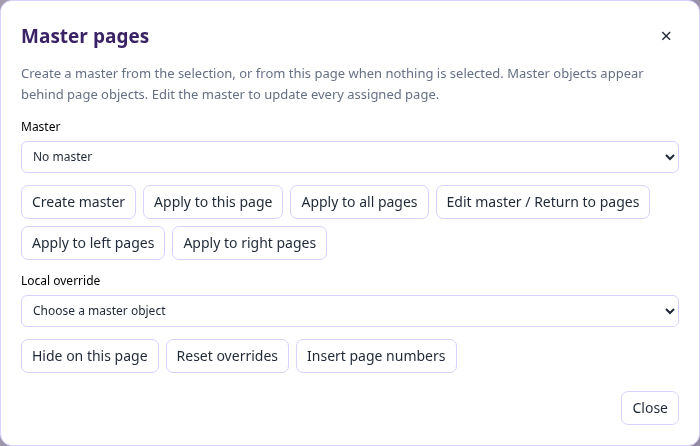
| Master pages | Reuse backgrounds and branding across pages, apply left/right masters, and add updating page/total folios. |
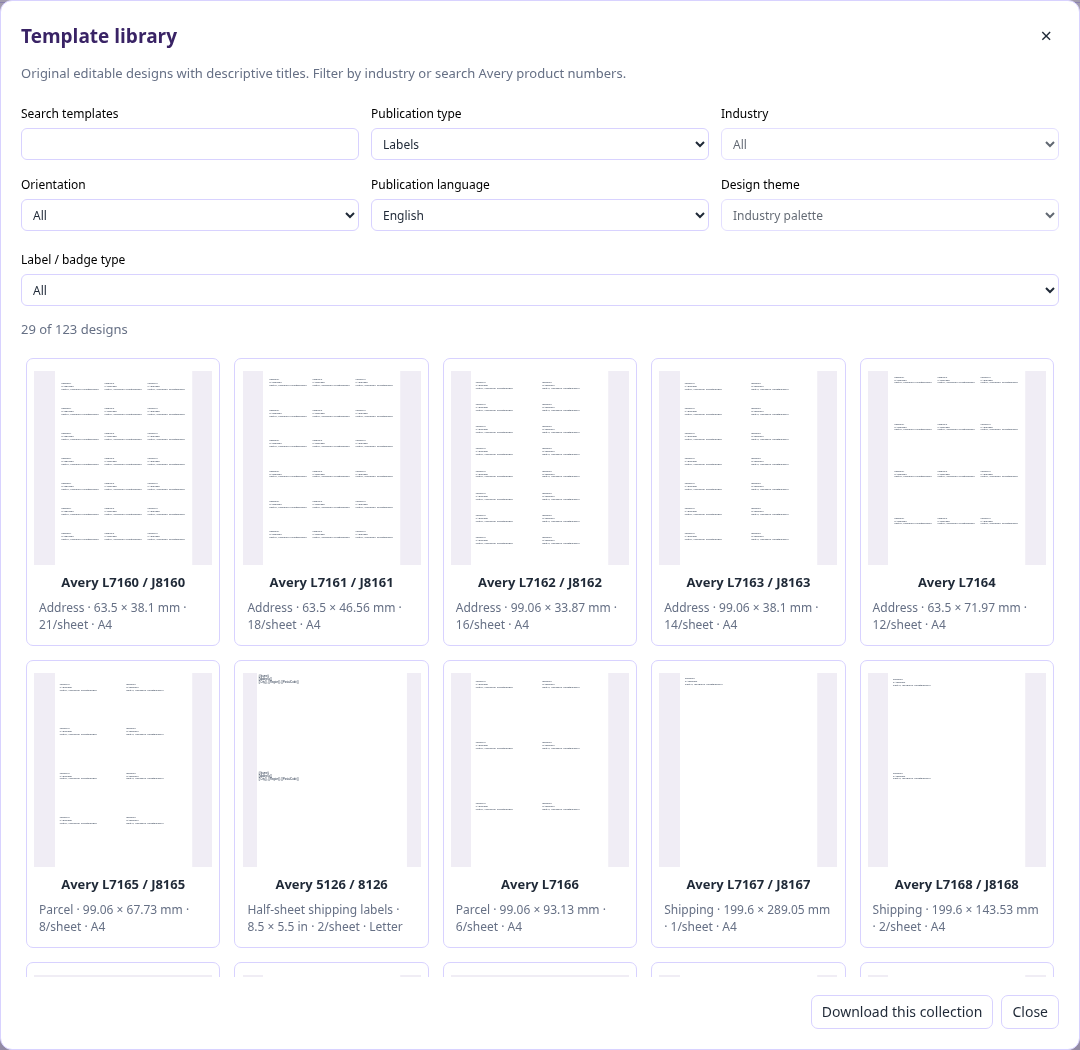
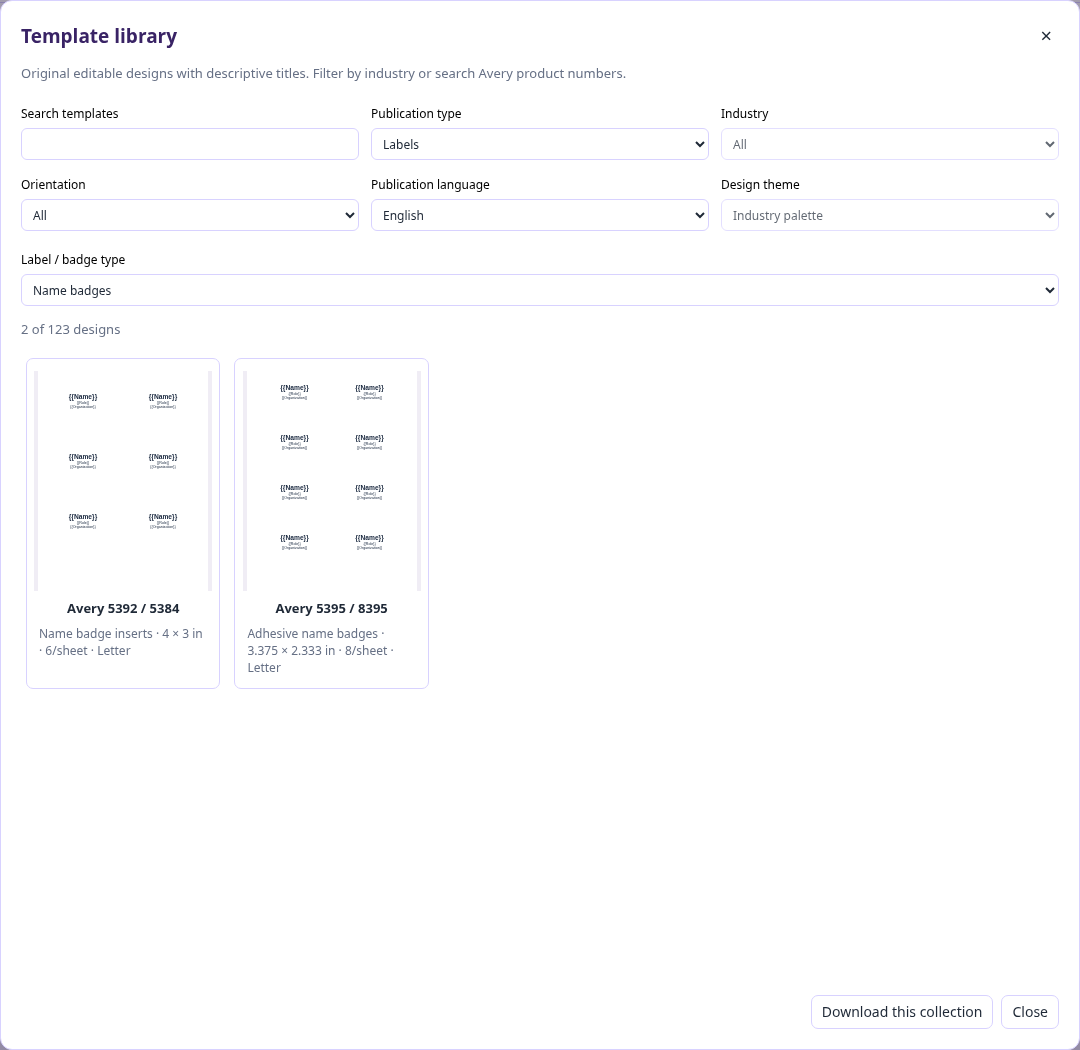
| Avery labels and badges | Choose 29 measured sheet geometries covering 127 product codes, including name badges. |
| Mail merge | Personalize publications from CSV, TSV, XLSX, GridSplat, or ListSplat data. |
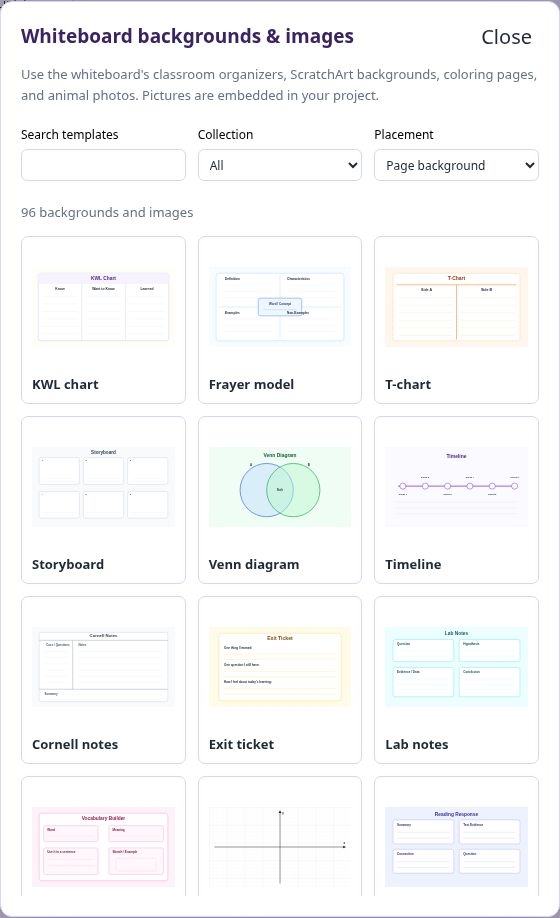
| Whiteboard artwork | Reuse 96 classroom organizers, ScratchArt backgrounds, coloring pages, and animal pictures. |
| Local imports | Decode supported Publisher, Word, legacy Pages, legacy QuarkXPress, and artwork formats in the browser. |
| SplatWorks exchange | Import and export supported WriteSplat stories, ShowSplat pages, and GridSplat/ListSplat tables. |
| Design checker | Review layout findings before sharing or printing. |
| Digital publishing | Export fixed-layout HTML with media or a reading edition with a separate reading order. |
| Print preparation | Print to PDF, export image proofs, set bleed/crop marks, and gather assets in Pack and Go. |
| Portable projects | Save .layoutsplat packages or native JSON; reopen a LayoutSplat HTML export containing its native payload. |
| Browser housekeeping | Use local drafts and recovery, or clear LayoutSplat’s saved workspace from the File menu. |
These are shipped capabilities in v0.4.6. File conversion, media decoding, and commercial printing have the specific limits described below and in the feature guide.
Templates that change the design
A useful template library needs more than one layout wearing different colors. LayoutSplat’s library counts distinct compositions, with different arrangements of text, pictures, panels, and decorative elements.
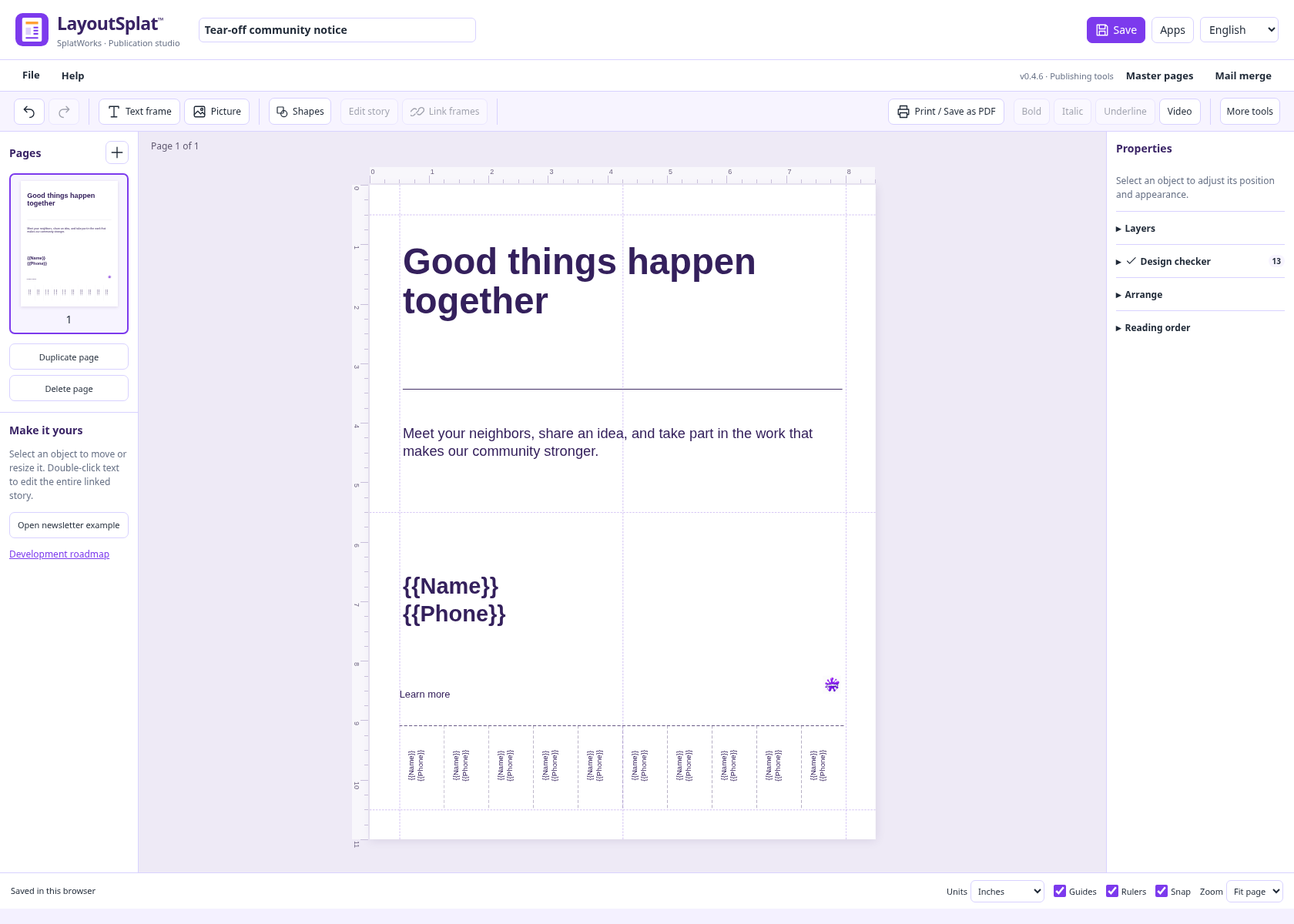
There are eight flyer designs, eight brochure designs, six newsletter designs, six resumes, six photo collages, six document layouts, six business card compositions, and twelve restaurant menu compositions, alongside the other publication types. The brochure selection includes four trifolds and four bifolds. Two flyers include ten vertical tear-off contact tabs, separated by dotted cutting lines.
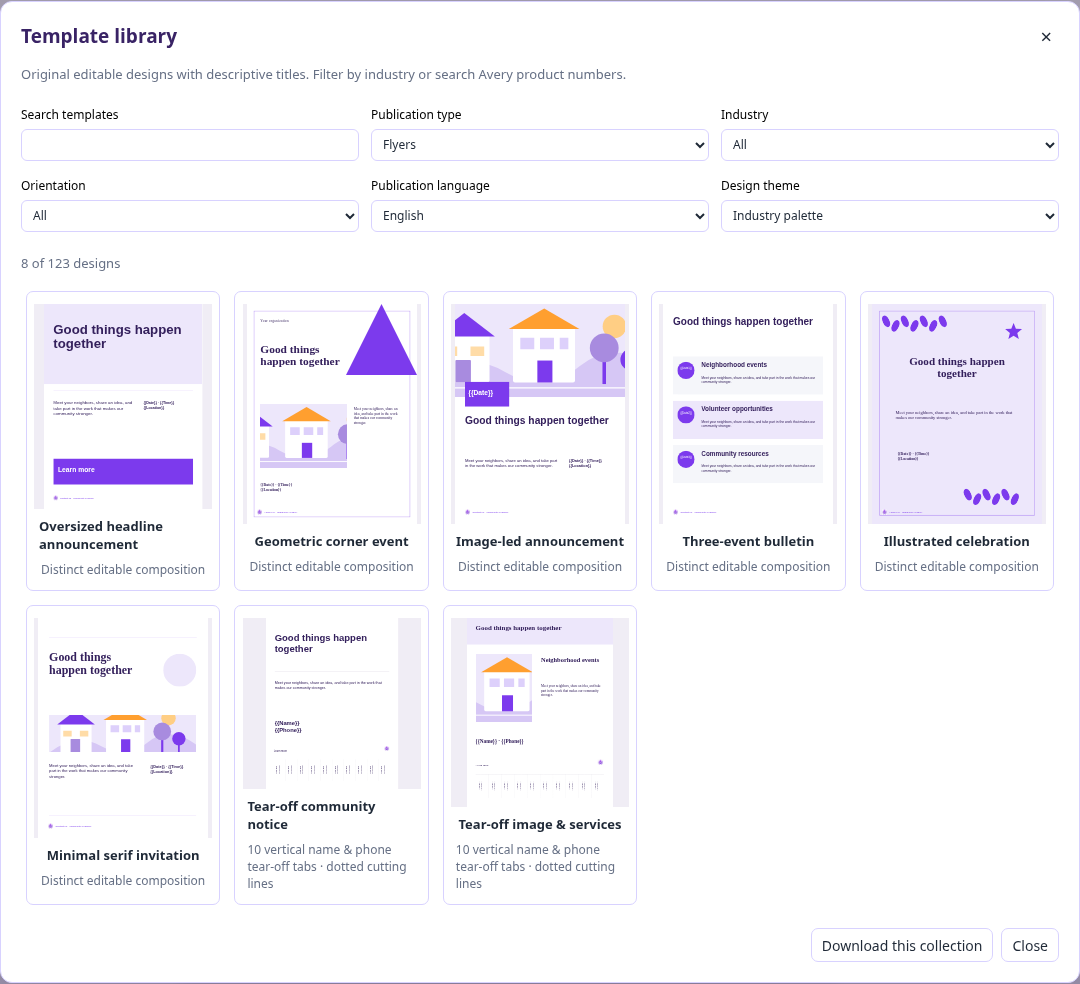
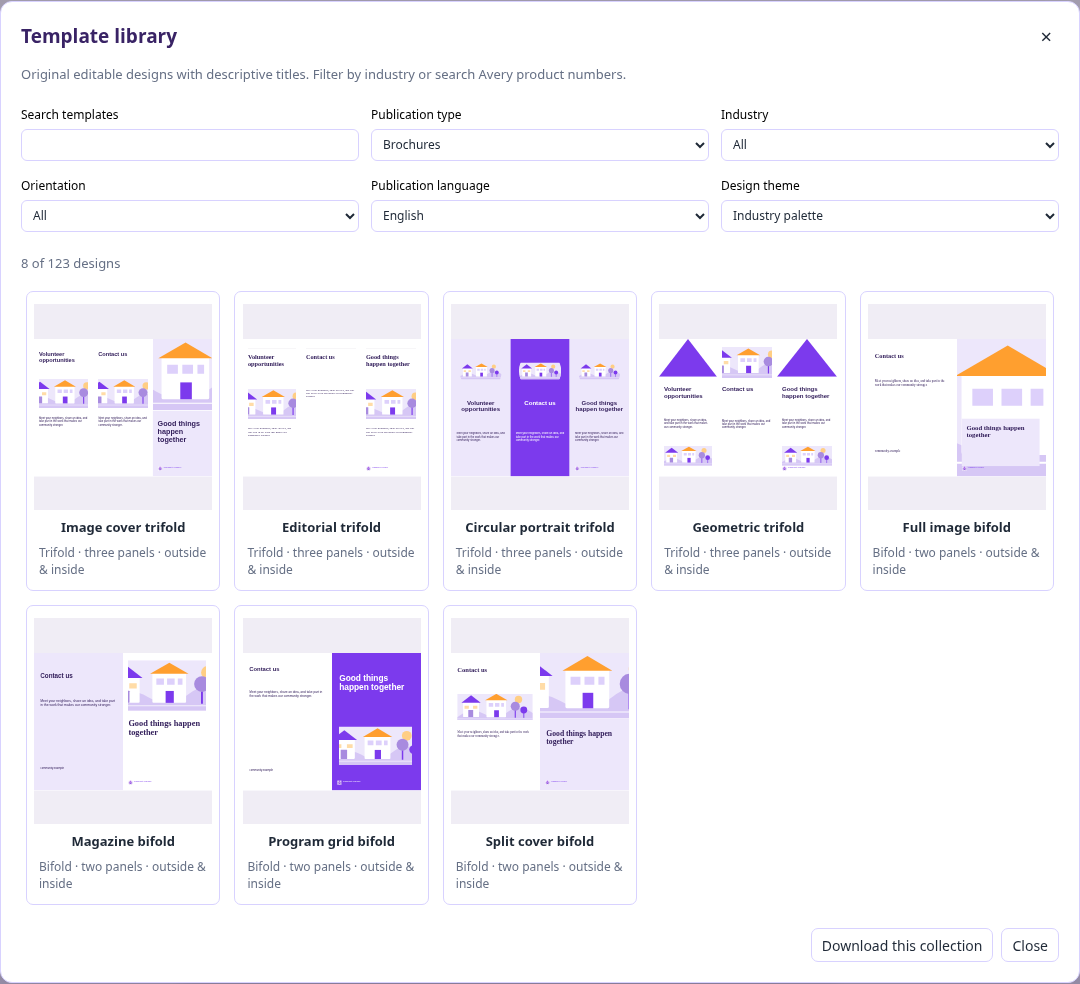
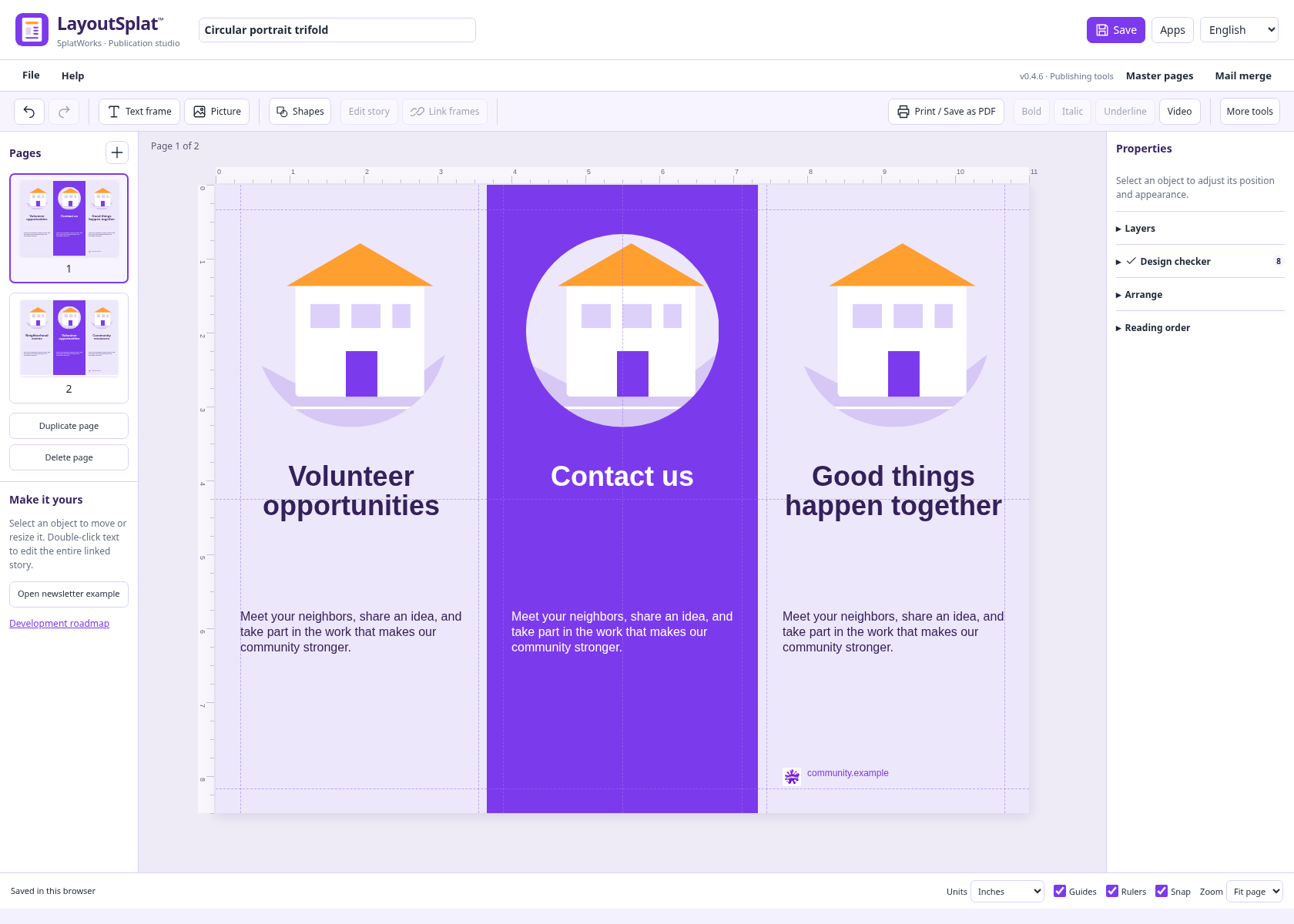
The library offers English, Spanish, Vietnamese, Arabic, Chinese, and Hindi publication editions. These editions do not turn 123 designs into 738 different compositions. They make the same designs easier to start in another language.
Business cards have replaceable logo examples. Label cards lead with Avery stock numbers. Descriptive titles help you choose a design before deciding whether to customize it for a school, community group, shop, or business.
A workspace for precise placement
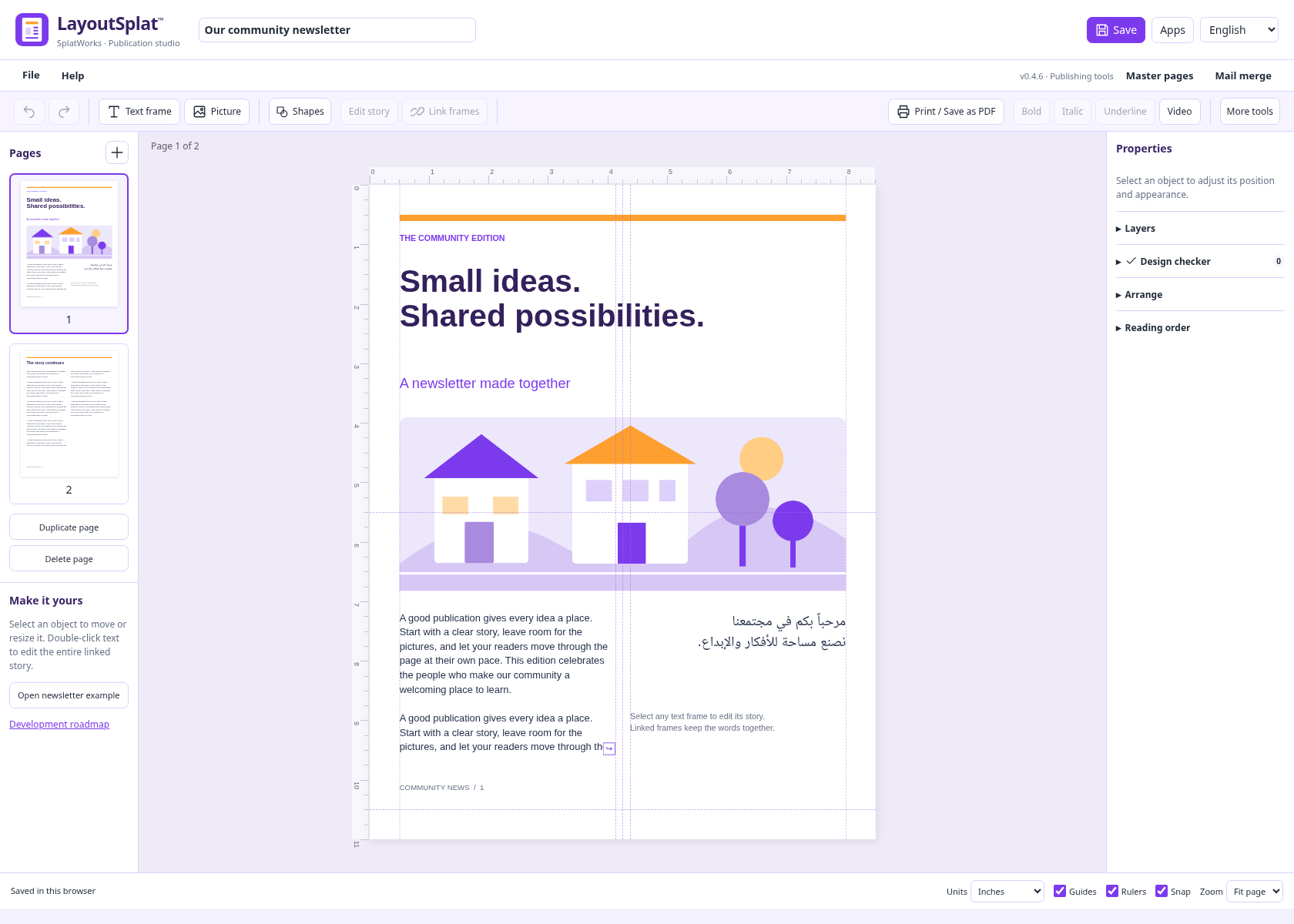
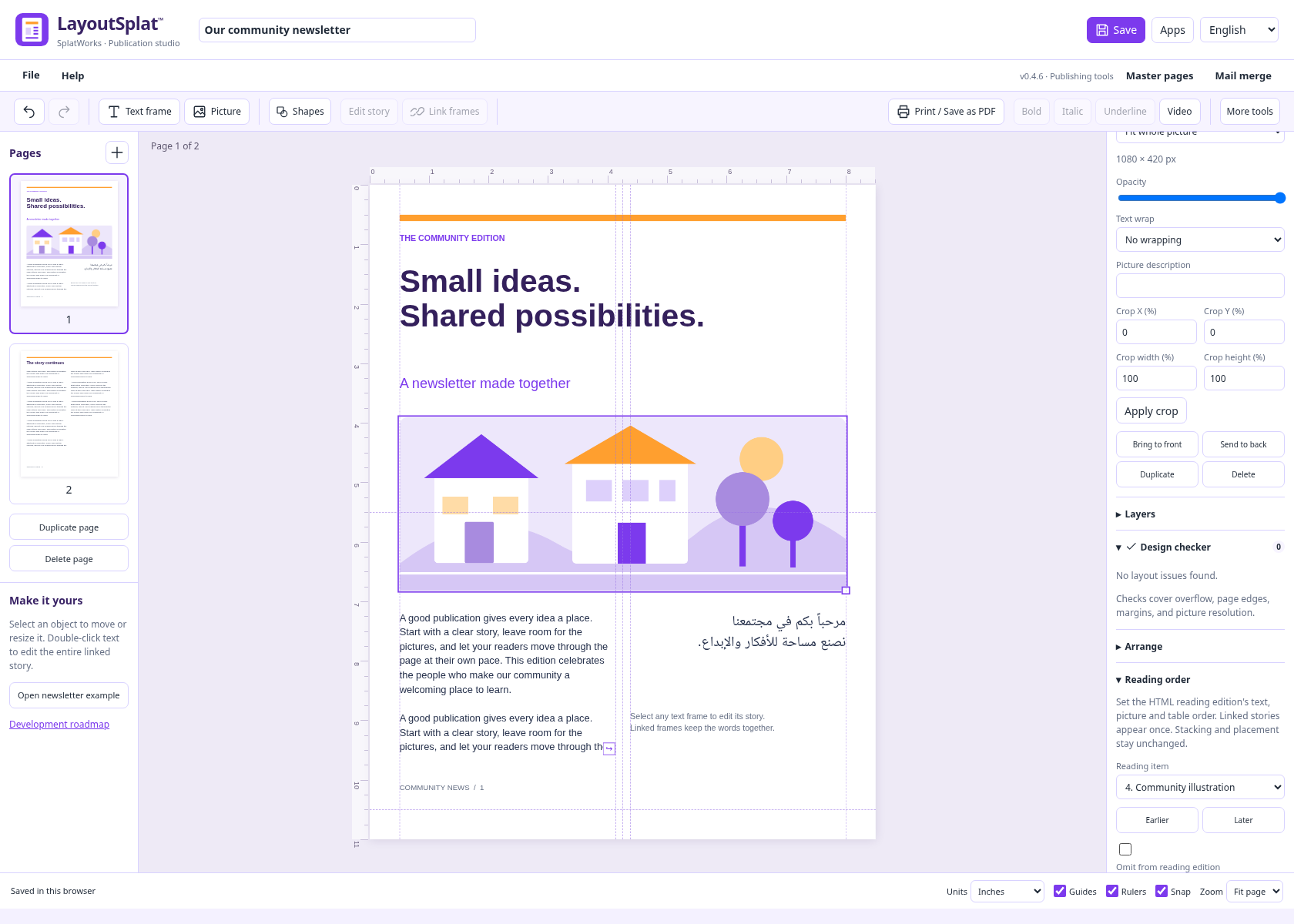
The page is surrounded by horizontal and vertical rulers. Page thumbnails sit on the left; object properties, layers, the checker, and reading order sit on the right. The File menu groups projects, templates, imports, page setup, printing, exports, and clearing saved browser data.
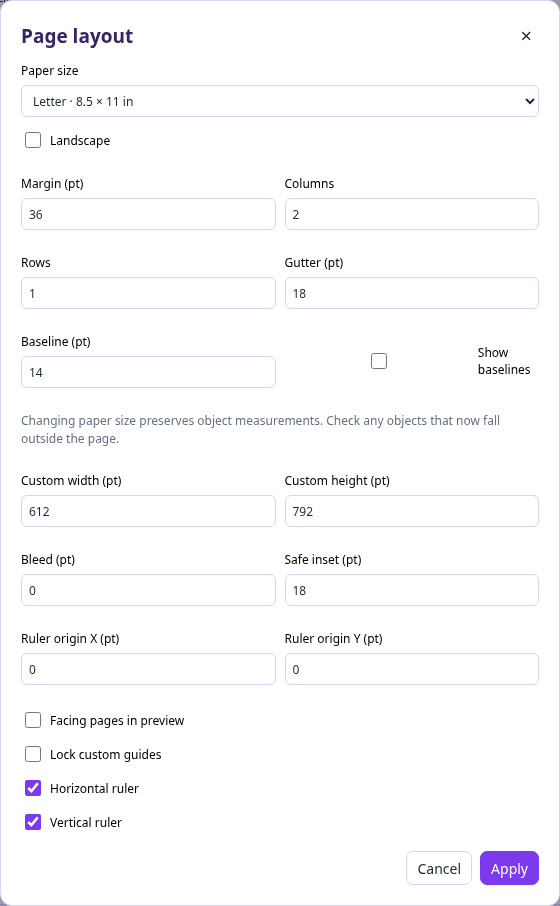
Choose File → Page layout to set the physical page dimensions and layout guides. Margin, column, row, and baseline guides help establish a consistent design. Bleed and safe insets make room for trimming and protect important content near the page edge. Facing-page preview and left/right masters help with multipage publications.
For objects, you can set exact position and dimensions, rotate, align, distribute, group, lock, and reorder. The Shapes button gathers rectangles, ellipses, lines, hexagons, arrows, and other options in one place. Layer transparency runs from opaque to fully transparent.
Right-click an object for relevant actions. On a Mac, Control/Command-click is supported; Shift+F10 provides a keyboard alternative. A picture frame offers media replacement. A text frame offers text import and linking. Replacing content keeps the frame’s geometry.
Text that can move between boxes
A newsletter story should not have to be pasted into every column separately. LayoutSplat links text boxes so one story can continue through multiple frames and onto another page. Shift-select boxes, open the context menu, and choose Link text boxes. Overflow findings help identify a story that needs more space.
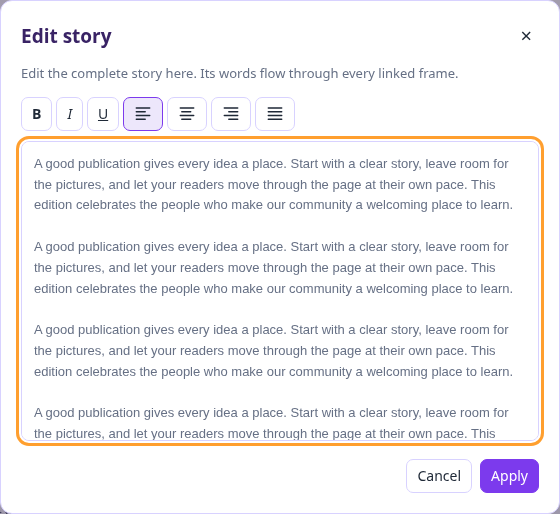
The Edit story window lets you work on the entire story. It can be moved by dragging its title bar, and its toolbar includes bold, italic, underline, and paragraph alignment. Select words for inline formatting; paragraph controls apply to the relevant paragraphs. Applying an edit keeps supported mixed formatting and works with undo.
The properties panel also offers serif and sans-serif choices, font metrics kerning, tracking, word spacing, ligatures, line spacing, and horizontal text scale. Drop caps, columns, AutoFit, WordArt, and format painting provide additional ways to shape the publication.
Original fonts matter when moving a design between programs. Import locally licensed font files before importing a Publisher publication. LayoutSplat matches available family names and regular/bold/italic variants, and reports substitutions. Matching fonts improves the result, but different composition engines can still wrap the same story differently.
Master pages, labels, and personalized publications
Master pages hold reusable backgrounds, branding, and other page elements. Apply a master to one page, all pages, or left/right pages. Local overrides can hide an inherited object on a particular page. Page-number fields on ordinary pages update their page and total values as pages change. Fields placed in master artwork are currently static.
For labels and badges, the library includes 29 Avery sheet geometries covering 127 product codes. Choose by stock number and check the sheet measurements. File → Label sheet & printer alignment lets you adjust printer offsets and start after already-used labels.
Mail merge reads CSV, TSV, XLSX, and native GridSplat/ListSplat JSON. Choose a worksheet or table, map fields, filter records, and preview before generating. Label merge fills the remaining positions and continues onto additional sheets. Formula errors in suite data stop that source rather than silently generating incorrect recipients.
That supports jobs such as personalized event badges, mailing labels, invitations, and recurring newsletters. Native list/database data can feed a publication without copying records by hand.
Can it open Publisher and other layout files?
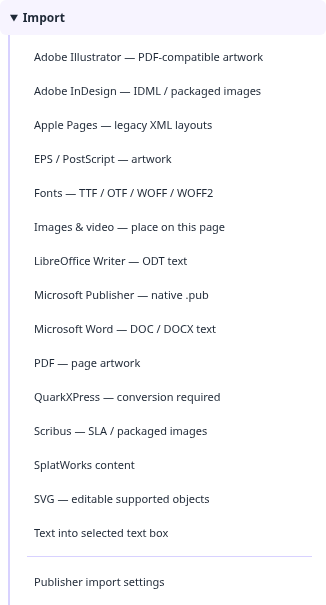
Yes, LayoutSplat can attempt native .pub import inside the browser. Its bundled WebAssembly decoder does not require a local LibreOffice installation or a document conversion upload. Supported text, shapes, embedded pictures, bitmap fills, crops, gradients, and other supported drawing properties become LayoutSplat content. Native projects keep the original source bytes.
The important question is how much of the source survives as editable content and how closely it matches the original. Publisher’s fonts, flow rules, linked stories, and advanced effects may differ. Review the conversion report and compare every page with a reference before relying on a print run. LayoutSplat does not export native .pub files.
| Source | What to expect |
|---|---|
| Word DOC/DOCX and LibreOffice ODT | Insert supported rich text into a selected unlocked text frame; preserve supported inline styles, numbering, paragraph spacing, leading, and indents. This does not recreate the whole source document’s page layout or tables. |
| Apple Pages | Legacy ZIP/XML documents can supply editable supported text, geometry, and pictures. Modern IWA documents need another export. |
| QuarkXPress | Native versions 3.1–4.1 have a local decoder for supported text, frame geometry, and vectors. Versions 5 and later need an interchange export. |
| Adobe InDesign | Use IDML and packaged assets for the supported editable subset. Native INDD/INDT decoding is unavailable. |
| Adobe Illustrator and PDF | PDF-compatible Illustrator files and supported PDF pages become sized, high-resolution page artwork. Flattened text is not editable text. |
| EPS/PostScript | The local converter produces flattened first-page artwork for supported files. |
| SVG and Scribus SLA | Supported objects and styles can be editable; complex effects and external assets require review. |
WriteSplat, ShowSplat, GridSplat, and ListSplat also have native JSON import/export routes. Supported stories, slides, and tables move between apps; complex spreadsheet formulas, charts, relationships, and every style do not round-trip through a layout document. The original native project is the reliable backup.
Pictures, video, and shared whiteboard backgrounds
Ordinary browser images are supported, with local decoders for formats including TIFF, HEIC/HEIF, PSD composites, and supported EPS/PS. The bundled media converter attempts additional image and video containers. Actual codec and file variant determine whether a file opens; “every format” would be an inaccurate promise.
A video can retain a poster image for print and play in the fixed-layout HTML edition. Layered artwork and some multipage or advanced color material may be flattened.
LayoutSplat also includes 96 backgrounds and images from the DrawSplat whiteboard collections: classroom organizers, ScratchArt backgrounds, coloring pages, and animal pictures. Place one as a locked background, insert it as a picture, or fill a selected picture frame. The image is embedded in the project.
Check, print, export, and keep a portable copy
The Design checker identifies supported layout problems before output. It helps you find issues such as text overflow and problems near page boundaries. A clean result is useful evidence, but it is not a commercial printer’s approval.
There are two different PDF paths. Print / Save as PDF uses the browser’s shaped selectable text and vectors. The downloadable high-resolution PDF proof preserves appearance as pixels. Choose the path that fits the job.
Export also offers high-resolution PNG/JPEG at 150, 300, or 600 ppi, SVG, IDML, Scribus SLA, native JSON, and suite content. The fixed-layout HTML edition keeps page placement and media. The HTML reading edition has an independent reading order, omission controls, and supported rich text, so you can present the content in a more flexible sequence without rearranging the printed page.
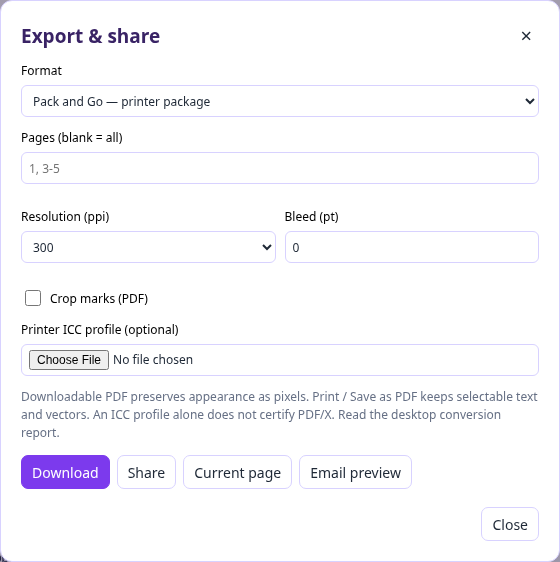
Print preparation includes bleed, crop marks, trim boxes, and optional ICC output intents. Pack and Go includes an optional desktop Ghostscript helper for PDF/X-3 conversion and independent structural checks. Those checks are useful preparation; exhaustive PDF/X certification and acceptance by your printer remain separate work.
Save a .layoutsplat project or export native JSON for a portable editable copy. Browser drafts are convenient, but they belong to that browser, device, and domain. A project saved in a DrawSplat.org browser draft does not automatically appear in SplatWorks.org’s storage. Download it before switching.
If you need a fresh start, choose File → Clear saved browser data. Save a project first if you want to keep it. The command clears LayoutSplat’s current draft, recovery copy, and undo, then opens a blank publication. It keeps downloaded projects and other apps’ drafts.
A practical first project
- Open LayoutSplat and choose File → Templates → Browse all designs.
- Pick a design by its composition, then choose language, industry, or palette if useful.
- Replace the example words and pictures. Double-click a text frame to edit its story.
- Check the page size and print settings. For an imported file, read the conversion report and compare it with the original.
- Run File → Design checker, preview the pages, and save a native project before exporting.
- Print a proof before a larger run, especially for folds, labels, badges, and commercial trimming.
LayoutSplat is free to use and its source and component notices are available in the project repository. It can also be self-hosted; an offline package needs its supplied local HTTP launcher rather than opening the editor directly with file://. Check the release version on the downloads page, since a published ZIP may lag the live editor.
Publisher’s retirement is a reason to preserve old work and explore a new workflow. LayoutSplat offers a growing set of the practical tools that make everyday desktop publishing useful, with portable projects and clear conversion reports to help you make that move.
Try LayoutSplat · Illustrated feature guide · Import accuracy and limits · Avery stock list
LayoutSplat and SplatWorks are independent projects. Microsoft Publisher and the other product names identify their respective products; no Microsoft affiliation is implied.